Automatically save your original photos to your Amazon S3 bucket
Backup and share photos with Amazon S3
Epics3 gives you the option to automatically save your photos to your own Amazon S3 bucket when you upload them to our servers.
Not only does this let you keep a backup copy of your photos in a safe place on Amazon's servers, but it also allows you to
send out links with your own domain name.
For example, these two web pages were created at the same time. The second link is stored in a personal S3 bucket:
http://epics3.com/CassidyEVA
http://pics.joemoreno.com/CassidyEVA
Overview
To have Epics3 automatically save your photos you must share one of your AWS S3 buckets with Epics3.
When you do this, only you and Epics3 will be able to write to your S3 bucket. However, everyone will be able to read from it (i.e. see your photos).
You can share your S3 bucket by configuring its access control list (ACL).
One of the most popular tools for doing this is the free S3Fox Organizer Firefox plugin.
Simply download it and install it in Firefox.
Setup Steps
It only takes a few minutes to create and configure your Amazon S3 bucket.
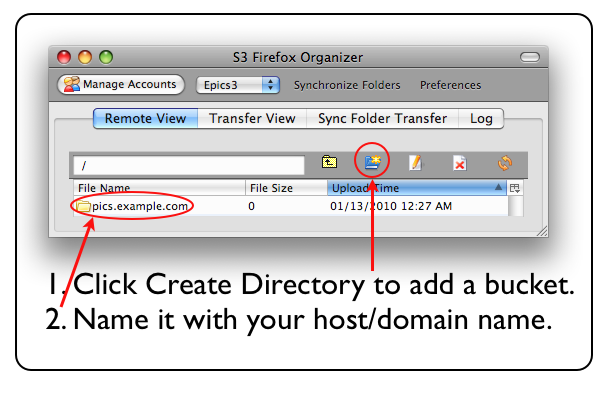
Step 1 of 6: Create your AWS S3 Bucket.
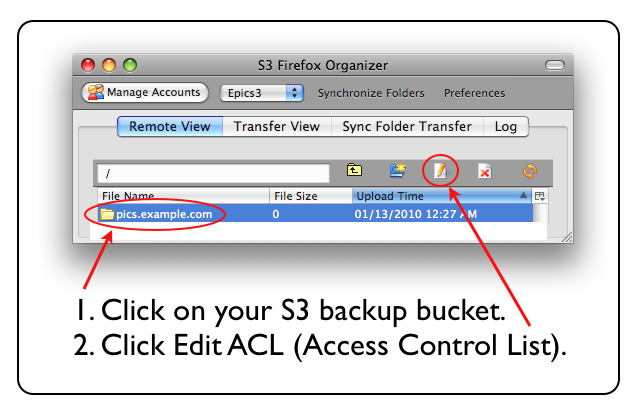
Step 2 of 6: Edit the bucket's ACL.
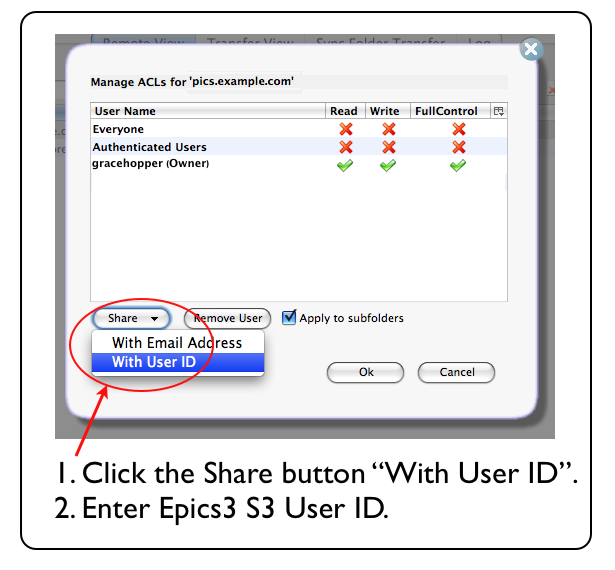
Step 3 of 6: Share your bucket with Epics3.
Epics3 User ID:
e4f8765b4c71302e627ad05e27b5371433420bfffe99960c7170005f15f2540c
 Epics3 User ID:
e4f8765b4c71302e627ad05e27b5371433420bfffe99960c7170005f15f2540c
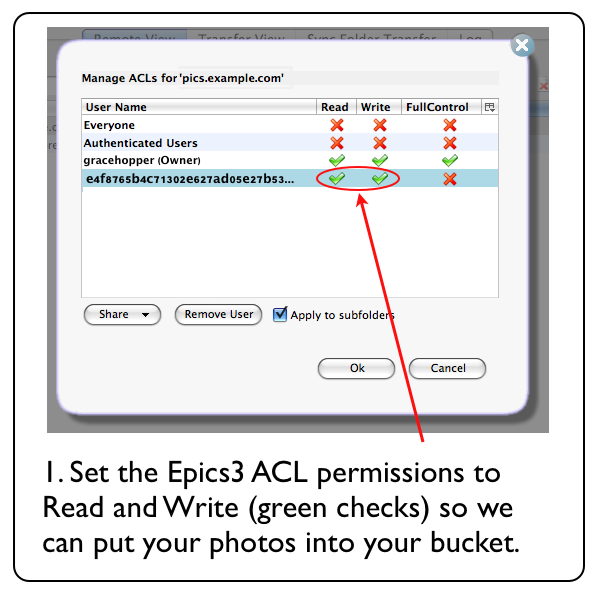
Step 4 of 6: Allow Epics3 to read & write to your bucket.
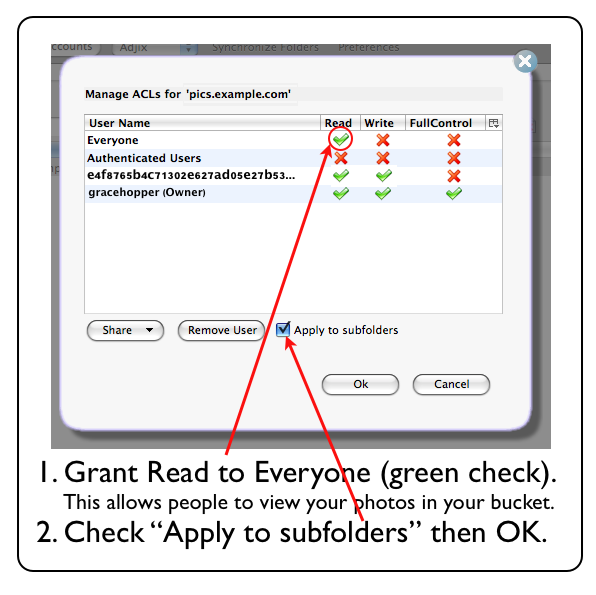
Step 5 of 6: Allow everyone to see your photos.
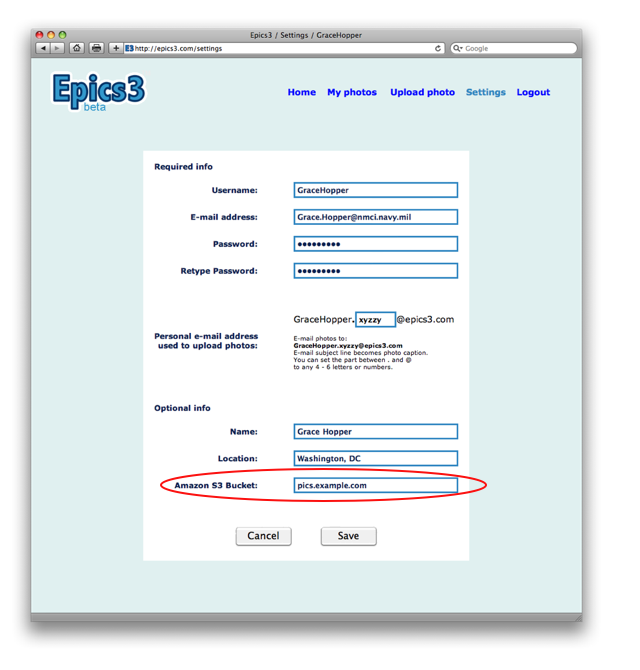
Step 6 of 6: Enter your bucket name into your Epics3 account.
Note: If you'd like to serve up images from your bucket using your own domain name then
you'll need to also set up a DNS CNAME (alias) to your.bucket.name.s3.amazonaws.com.
|
|
|
|
|
|
|
